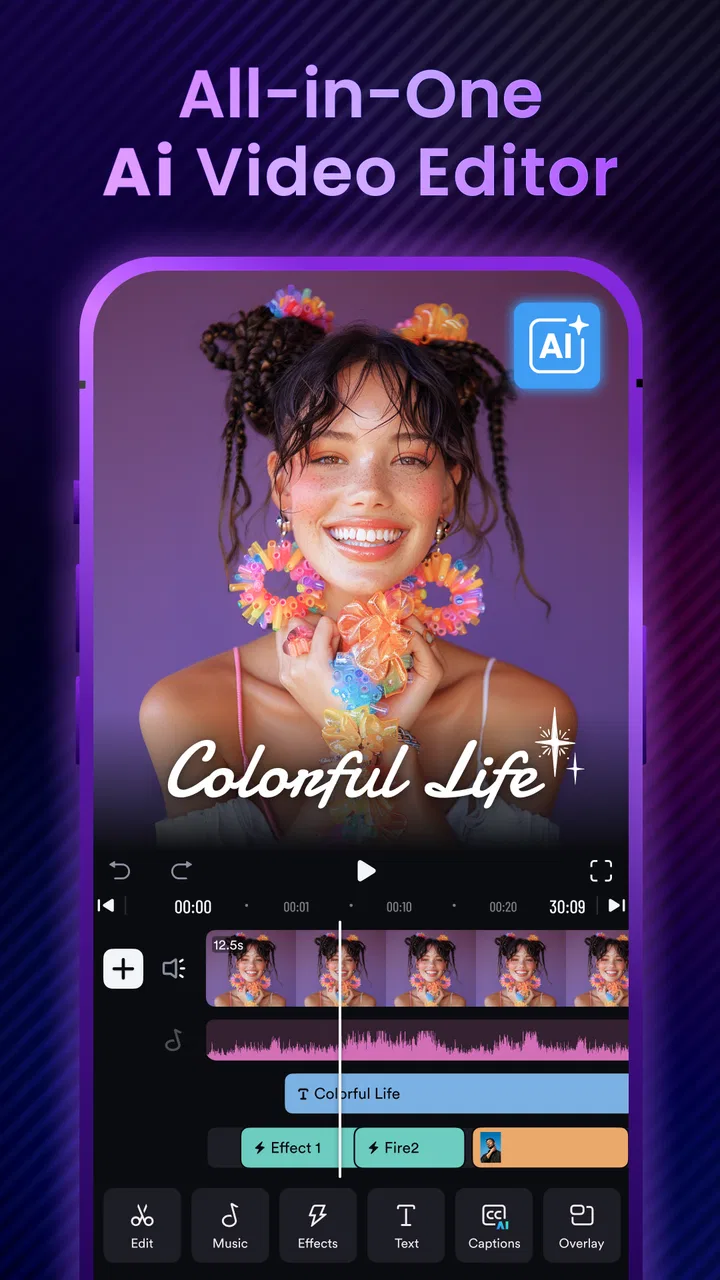
AI Video Editor: ShotCut AI
- 4.2
- Rating
- 50.00M
- Installs
- Free
- Price

 Analysis by App-foxy
I approached ShotCut AI as a practical mobile video editor rather than as a simple one-tap effects app. It is designed for making videos, slideshows, and movies, with artificial-intelligence tools positioned at the center of the experience. That makes it appealing when I want to turn a collection of phone clips into something presentable without opening a desktop editor, but it also means the quality of the result depends heavily on how clearly I prepare the material and how much time I spend checking the automatic choices.
The app comes from Shotcut Video Workshop and sits in the video players and editors category. It is free to install, carries an Everyone age rating, and supports Android 8.0 or later. The current version is 3.2.1. Its store presence is substantial, with more than 50 million installs, an average rating of 4.3, and roughly 373 thousand ratings. Those figures suggest that it has reached a broad audience, although popularity does not remove the need to learn its workflow.
Where the editing experience usually gets stuck
The first point of friction is often not the creative work itself but understanding what the app is trying to do with a project. An AI-assisted editor can make the opening step feel easy: choose media, select an intended style or output, and let the app assemble something. The trouble begins when the first result is almost right rather than genuinely ready to share. A clip may appear too long, a transition may not suit the rhythm, or the order may tell a different story from the one I had in mind.
You May Also Like

 Blood Strike: 2.5 Anniversary
Blood Strike’s Loadouts Turn Every Drop Into a Tactical Gamble
A close look at Blood Strike’s custom loadouts: how fast access to signature weapons reshapes its battle royale rhythm, rewards preparation, and narrows the gap between fights.

 Pandora - Music & Podcasts
Pandora’s Music Is Easy to Start, but Harder to Recover
Pandora’s strength is its low-effort path from a seed to a station. Its weak spot is how much confidence it asks you to place in connection, setup, and quiet recovery.

 8 Ball Pool
 Is Built on Rivalries, Rematches, and Routine
A close look at the rivalries, rematches, shared routines, and unanswered safety questions that turn a quick pool match into a persistent mobile community.

 Samsung Music
’s Quiet Strength Is Playing What You Already Own
Its reach comes less from spectacle than from dependable access to a personal library. That simplicity is both the app’s strongest retention engine and its ceiling.

 AccuWeather: Weather Radar
AccuWeather Review: A Quick, Clear Forecast for Everyday Decisions
For everyday plans, the best forecast is the one you can understand quickly. AccuWeather makes rain timing, radar, and local conditions easy to act on, with a few trade-offs.

 Hill Climb Racing
Why Hill Climb Racing Still Turns Crashes Into One More Run
A tiny car, a bumpy hill and one more upgrade: Hill Climb Racing keeps resurfacing because its simple chaos makes every near-miss feel personal.
More From Our News Desk



I found it useful to treat the automatic result as a draft. That mindset prevents a common mistake: judging the whole application from its first generated sequence. The strongest use of this kind of tool is not replacing every editing decision, but removing repetitive work so I can concentrate on the few decisions that matter, such as the opening shot, the ending, the pace, and whether the soundtrack distracts from spoken audio.
Media selection can also create confusion. A folder full of similar clips gives the editor less context than a person has. If I select every short recording from an afternoon, the resulting movie may include near-duplicates, accidental camera movements, or several versions of the same moment. A better approach is to begin with a small, deliberate group: one establishing shot, the clearest action, a detail, and a closing image. Once that sequence works, I can add material instead of asking the app to rescue an unedited camera roll.
Another sticking point is the difference between a slideshow and a video with a clear narrative. A slideshow can succeed with still images and gentle timing, while a movie assembled from action clips needs attention to continuity. A person walking in one direction, a sudden change in camera angle, or a cut that lands during speech can make an automatic edit feel rough. I would not call that a failure of ShotCut AI; it is a reminder that visual order remains important even when software is doing much of the assembly.
Export expectations are another area where patience helps. A project can look acceptable in the editor and still need a careful final check. I always watch the complete preview, not only the first few seconds. This catches an ending that lingers too long, a title that covers a face, a transition that feels out of place, or audio that becomes noticeably louder after a cut. These are small issues, but they are exactly the details that separate a convenient draft from a video I am comfortable sending to someone else.
What I check before blaming the editor
When a project behaves strangely, I first check the source clips. A damaged recording, an unusual orientation, or a file that plays inconsistently elsewhere can create symptoms that look like an editing problem. I also make sure the selected media is actually available on the device and has not been moved between folders. Keeping the original files in place until the project is finished is a simple habit that avoids unnecessary confusion.
I also review the project in smaller stages. Instead of importing a large collection and changing everything at once, I create a short test using a few representative clips. If the test behaves normally, I know the basic workflow is sound and can expand it gradually. If it does not, I have a much smaller problem to inspect. This is especially helpful on older phones that meet the Android requirement but may still feel less comfortable with demanding video tasks.
Setup checks that make the first project easier
Before I start, I decide what the video is for. A family message, a social post, a short travel recap, and a longer personal movie do not need the same editing approach. The purpose determines how many clips I should choose, how much text is useful, and whether I should prioritize speed or manual control. ShotCut AI is most attractive when I want a fast starting point with room for adjustment, not when I want to build every cut with frame-by-frame precision.
I prepare the media by removing obvious duplicates and separating unrelated scenes. This is one of the most effective improvements I can make because the editor can only choose intelligently from the material I give it. For a birthday recap, I might keep the arrival, a few reactions, the main moment, and a final group shot. For a product demonstration, I would separate the introduction, close-up details, use sequence, and result. Giving the project a visual structure before importing it makes the automatic arrangement more coherent.
Orientation deserves an early check. Mixing vertical and horizontal footage can be perfectly reasonable, but it needs a deliberate decision about how the final video should look. If I leave the app to reconcile every difference automatically, important subjects may be cropped or surrounded by unused space. I preview the framing of the most important shots before spending time on decorative edits. A beautiful transition cannot compensate for a face or object being cut out of the frame.
Audio is equally important. I listen for clips containing speech, wind, traffic, or background music before choosing the overall mood. If the original voice matters, I avoid treating the soundtrack as the main feature. In practice, a simple edit with understandable speech is more useful than an energetic montage that makes conversation difficult to hear. I also check the beginning and end of every source clip because unwanted noise often hides there.
For a smoother setup, I close unrelated apps and keep enough free storage for temporary project work and the finished file. I do not regard this as a special ShotCut AI requirement; it is sensible preparation for mobile video editing in general. If the phone is hot, nearly full, or already struggling with other demanding tasks, I postpone the final export rather than repeatedly tapping the same control and assuming the editor is broken.
The app is free to use in its basic download model, while in-app purchases range from $0.99 to $119.99 per item. I would therefore inspect any upgrade screen carefully before confirming a purchase and decide whether the available tools justify the cost for my particular project. Someone making occasional family clips may be satisfied without paying, while a frequent creator may value additional options enough to consider them. The important point is to evaluate the actual workflow rather than assume that every visible tool belongs to the free experience.
A setup routine I would recommend
Choose the intended audience and final purpose before selecting media.
Remove duplicate, accidental, and unrelated clips from the working selection.
Test a small group of videos with mixed movement, speech, and still images.
Preview framing and audio before adding titles, effects, or decorative transitions.
Save or export a short test so I know the complete path works before finishing the full movie.
This routine is not glamorous, but it reduces the most frustrating kind of editing failure: discovering at the end that the source selection, framing, or audio made the project unsuitable. It also gives me a repeatable way to identify whether a problem belongs to the media, the project arrangement, or the final output stage.
Recovering a workflow when the result is wrong
When the generated edit feels messy, I do not immediately restart from zero. I first remove the weakest clip and preview again. Automatic editing often improves more from deleting one distracting shot than from adding several effects. If the story still feels unclear, I rebuild around a strong opening and a definite ending, then place supporting clips between them. This creates a simple visual spine that the app can work around.
A useful recovery method is to divide the project into sections. For example, a day trip can become departure, arrival, activity, and return. I create or review each part separately, then combine them only after the order makes sense. This prevents one confusing scene from affecting the entire movie and makes it easier to locate the source of an awkward transition.
If a title or visual treatment makes the video feel less personal, I simplify rather than decorate. AI tools are good at producing an immediately noticeable result, but noticeable is not always appropriate. A quiet slideshow for relatives may need readable text and steady pacing, while a fast montage may tolerate more movement. I prefer to keep one visual idea consistent throughout instead of applying every available style to the same project.
When playback stutters, I distinguish preview performance from the finished file. A preview can be less smooth while the phone is assembling a complex sequence, whereas a problem that remains in the exported video deserves closer attention. I test with a short project first, restart the app, and repeat the export only after checking that the source media is intact. If the issue appears with one clip but not others, I replace that clip temporarily to isolate it.
For failed or interrupted work, I use a conservative recovery strategy: keep the original media, reopen the project, and make one change at a time. I avoid moving source files, renaming them in bulk, or clearing app storage while I am still trying to understand what happened. Those actions can make the situation harder to diagnose. A small test project is valuable here because it tells me whether the problem follows the app or only one particular collection of files.
There is also a creative recovery for AI decisions that miss the point. I write down the message of the video in one sentence. If the sentence is “show how the garden changed,” then clips of unrelated meals or roads should not remain simply because they look attractive. This sounds obvious, yet it is easy to lose direction when an automatic montage rewards visual variety. The editor can arrange footage, but I still need to decide what the audience should remember.
Three less obvious ways I use it
First, I use a short “proof of workflow” project before beginning an important movie. I include one vertical clip, one horizontal clip, a still image, and a recording with speech. This reveals how the app handles my actual media mix and lets me make framing and audio decisions early. It is much more useful than testing with ideal sample material.
Second, I create a clean selection for the automatic pass and keep a separate reserve of clips. The reserve is not a dumping ground; it contains moments I may need if the first edit lacks context. This gives the AI-assisted arrangement a focused starting point while preserving creative options. Adding everything at once usually creates more sorting work later.
Third, I use the first generated version as a storyboard. Even when I replace several cuts, the draft can reveal an unexpected relationship between scenes or suggest a better order. I look for those structural discoveries before worrying about filters or transitions. This turns automation into a planning aid rather than a final authority.
When the app is not the cause
Some apparent editing failures begin outside the application. If a source video is already dark, blurred, badly framed, or recorded with overpowering noise, an editor may improve presentation but cannot reliably turn it into a different shot. I keep the original clip and compare it with the edited version so I can judge whether the software made a poor choice or simply had limited material to work with.
Storage pressure is another likely culprit. Video projects need room for source files, working data, and the final result. A phone that is almost full may behave unpredictably across many apps, not just this one. I remove unnecessary files or move finished videos before attempting a large project. I also avoid deleting source media until I have watched the final file from beginning to end.
Device age can affect comfort even when the operating system is supported. Android 8.0 is the minimum listed for the app, but compatibility is not the same as identical performance on every phone. Older hardware may take longer to process a project or export a movie. In that situation, shorter sections, fewer simultaneous changes, and a patient preview routine are more realistic than expecting instant results.
Network conditions can matter whenever an app relies on an online step, although I do not assume every editing action needs a connection. If a particular AI-assisted action pauses, I check whether the connection is stable and try a small project rather than repeatedly submitting a full one. If local editing works but one automated step does not, that distinction helps me avoid blaming the entire editor.
Finally, some dissatisfaction is really a mismatch of expectations. People who want exact timeline control, detailed color correction, advanced audio mixing, or a large desktop-style workspace may prefer a traditional editor on a computer or a more manual mobile alternative. ShotCut AI is better suited to quick assembly, guided experimentation, and everyday storytelling. It is not the choice I would make for a carefully timed professional production where every frame and audio level must be controlled directly.
My practical verdict after using the workflow
I see ShotCut AI as a convenient bridge between raw phone footage and a shareable video. Its strongest quality is the reduction of repetitive decisions: it can help me move from a scattered group of clips toward a recognizable slideshow or movie without requiring a long editing session. The result becomes much better when I provide a focused selection, check orientation and audio, and treat the automatic version as a starting point.
The app is a good fit for families, casual creators, travelers, students, and anyone who wants to make a polished visual recap without learning a full desktop timeline. It is also useful for testing different story orders quickly. A person who regularly turns weekend footage into short updates may appreciate that balance between speed and the ability to review the result before sharing it.
I would be more cautious about recommending it to someone who dislikes automatic decisions or expects professional-level manual precision. The free entry point is attractive, but the presence of in-app purchases means I would examine the available options before building a workflow around a paid tool. I would also choose another editor when exact sound mixing, detailed keyframe work, or highly controlled color treatment is the main goal.
Its broad reach is reflected in the 4.3 average from about 373 thousand ratings, and the Everyone rating makes it approachable for a wide audience. Still, the most important question is not whether the app can produce something quickly; it is whether its assisted approach matches the way I want to make videos. If I am willing to curate my clips and review the complete result, it saves meaningful effort. If I want to direct every cut myself, the automation may feel more like an obstacle than a shortcut.
My recommendation is to begin with a small, low-pressure project: a handful of related clips, one clear purpose, and a final preview watched from start to finish. That test will answer the practical questions that matter most—whether the workflow suits the phone, whether the automatic arrangement respects the story, and whether the available controls are enough. In my experience, the best results come from using the AI as an assistant, not as the editor in charge. With that expectation, ShotCut AI is a useful free starting point for everyday video making, provided I keep my source material organized and remain involved in the final decisions.
FAQs for AI Video Editor: ShotCut AI
01What are the key features of ShotCut AI?
ShotCut AI offers a range of features including automatic video editing, AI-driven enhancements, and a variety of filters and effects. The app uses advanced algorithms to analyze your footage and suggest edits that enhance the overall quality. It also provides tools for manual adjustments, allowing users to customize their edits further.
02Is ShotCut AI user-friendly for beginners?
Yes, ShotCut AI is designed with an intuitive interface that caters to both beginners and experienced users. The app provides guided tutorials and easy-to-use tools that help new users navigate the editing process seamlessly. Its AI-driven suggestions also make it easy to create professional-looking videos without prior editing experience.
03What platforms is ShotCut AI available on?
ShotCut AI is available for both Android and iOS platforms, ensuring a wide range of compatibility with various devices. Users can download the app from the Google Play Store or Apple App Store, making it accessible for most smartphone and tablet users. Regular updates ensure compatibility with the latest operating systems.
04Does ShotCut AI require an internet connection to function?
While ShotCut AI can perform basic editing functions offline, an internet connection is required for accessing certain features. Online connectivity is necessary for cloud-based processing, updates, and downloading new effects and templates. Users can edit videos offline, but for the best experience, having internet access is recommended.
05Are there any subscription fees or in-app purchases within ShotCut AI?
ShotCut AI offers a free version with basic features, but there are also premium subscription options available. These subscriptions unlock advanced tools, additional effects, and remove ads. In-app purchases allow users to buy specific features or content packs. Pricing is competitive, providing flexibility based on user needs.
Pros
- Intuitive user interface for easy navigation.
- Wide range of AI editing features available.
- Supports high-resolution video exports.
- Quick processing with minimal lag.
- Regular updates and feature enhancements.
Cons
- Limited free version with restricted features.
- Occasional bugs during complex edits.
- High battery consumption on older devices.
- Requires internet for some functionalities.
- Steep learning curve for advanced features.

AI Video Editor: ShotCut AI
Gallery